
Visible ownership
Assign conversations to a person or agent and use conversation statuses to organize the queue.
Bring conversations together in inboxes, assign owners, and keep messages, contact data, and history accessible to the team.
See how it works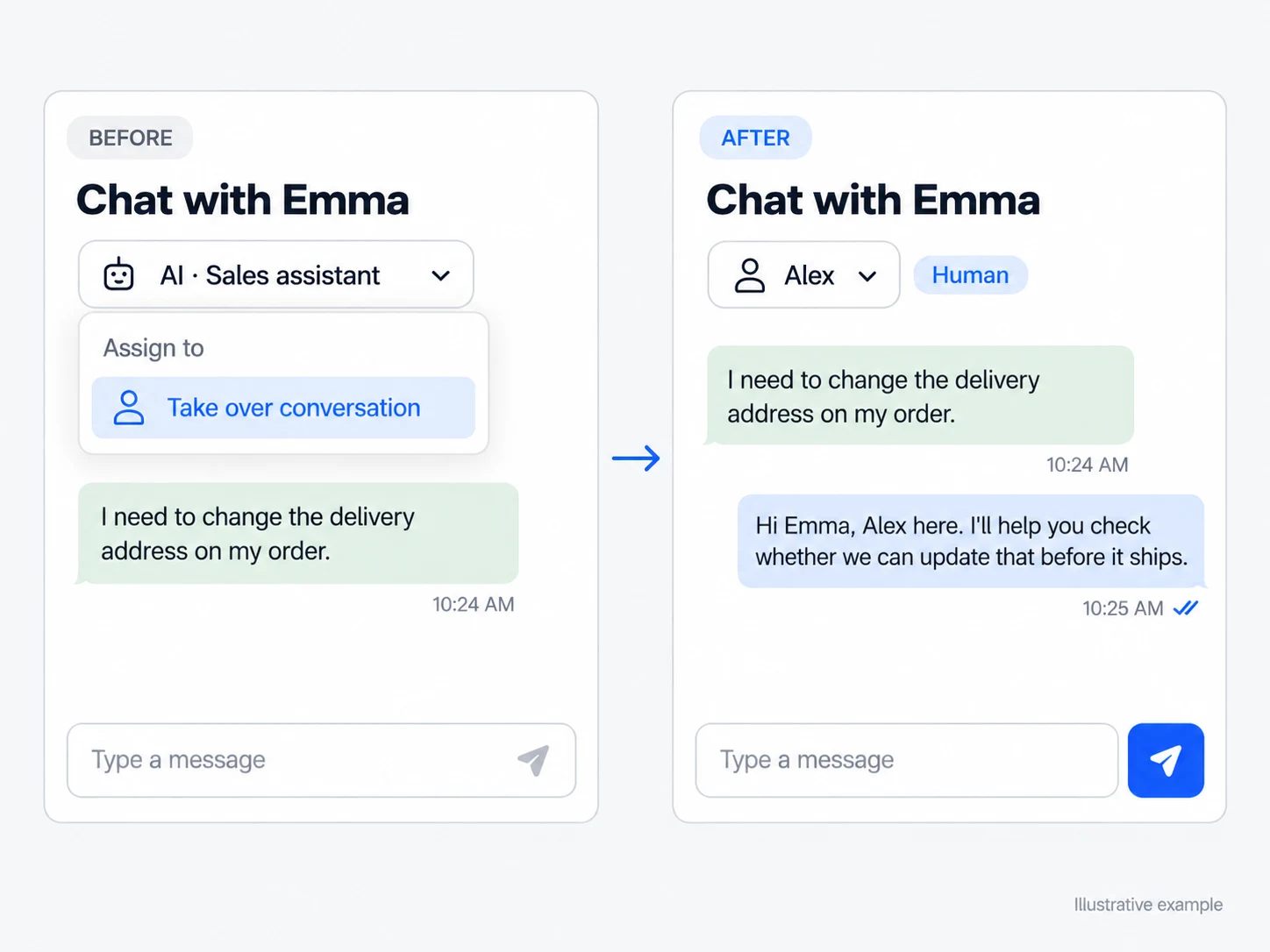
Assign conversations to a person or agent and use conversation statuses to organize the queue.
View messages, contact profiles, tags, carts, and recovery history when that data is available.
Take over a conversation when needed and keep the AI muted while the team handles it.
Organize conversations in inboxes, use statuses to separate open and completed work, and assign an owner. Each person sees the available contact history and data before replying. In CRM operations, overdue or today's reminders also appear in a dedicated queue to guide the next contact.
When the team needs to step in, the conversation moves to human support and the agent is muted for that interaction. The person continues from the previous messages and can view the profile, tags, cart, and recovery when that data is available. The team then chooses the next step without two replies competing for the same customer.
Assign owners and statuses to make it clear who is helping and which conversations still need action.
Continue the conversation with the available history while the agent remains muted.
In CRM mode, view the reminder queue and open the conversation linked to the opportunity directly.
Separate service flows and define which inboxes each AI agent can reply in.
Use owners, statuses, and tags to show who is handling each contact and where things stand.
Open the history, send the reply, and record reminders or next steps when you need to follow up later.
Yes. The account can organize inboxes and choose which agent handles each one. An inbox can also operate with human support only.
The conversation moves to human support and the AI is muted for that interaction, preventing simultaneous replies while the team handles the contact.
When the contact has taken part in a recorded recovery, the inbox shows its history and statuses alongside the conversation.
Connect every stage of your customer journey with WhatsApp, data, and artificial intelligence.